Digi-Sign
Digi-Sign is the DIS digital signature service. Its Digital Signature Portal is a web app where a citizen proves who they are with SLUDI and signs a PDF — no certificate to buy, no signing key to install, nothing to configure.
In the Developer Portal, open it from the left sidebar under Services → Digi-Sign. That link redirects to the Digi-Sign portal (it does not stay inside DIS).
The journey at a glance
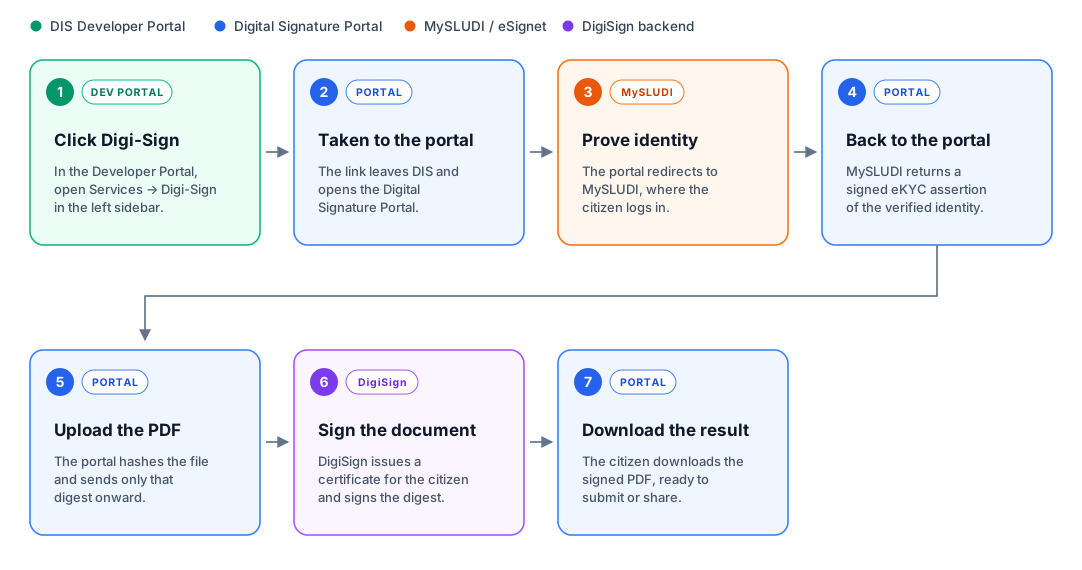
You never hold a signing key, and neither does Digi-Sign. For each signing act, the service mints a fresh key pair, issues a certificate binding it to the SLUDI-verified citizen, signs, and discards the private key in the same request. The certificate is what ties the signature to a real, OTP-verified identity.
Only the document's SHA-256 digest ever reaches the signing service — never the document itself.
Before you start
- A PDF to sign.
- A SLUDI sandbox identity — the UIN and OTP you use to log in to MySLUDI. If you do not have one, see the SLUDI integration guide.
There is no separate Digi-Sign account, and nothing to register in advance. Identity is proven per signature, not per session — so you log in each time you sign.
Step 1 — Sign a document
- Open the portal. You are redirected straight to MySLUDI — there is nothing to click first.
- Authenticate with your UIN and the OTP sent to you. MySLUDI returns you to the portal, now marked Verified.
- Under Choose a document, drop in your PDF and click Upload PDF.
- The portal hashes the file, sends only that digest to Digi-Sign, and shows you the certificate that signed it.
- Click Download signed PDF.
The signature step happens immediately on upload — your identity is already proven, so there is nothing left to confirm in between.
Signing produces a detached signature. The bytes you uploaded are the bytes you get back — which is exactly why the digest still matches at verification time. The Signed PDF is an additional copy with that signature embedded inside it, produced for readers like Acrobat that expect to find one there.
If a PDF cannot be rewritten (some files resist it), the signed-PDF copy is skipped and the portal tells you why. The signature itself is unaffected — it is still on the documents page.
Step 2 — Verify a document
The Verify page needs no login — anyone holding the file can use it.
- Open Verify and upload the PDF.
- Click Verify document.
The portal recomputes the digest from the bytes you supply and compares it with the digest that was signed. Change a single byte and they will not match.
It finds the signature to check against in one of three ways, in this order: the signature embedded in the PDF, a record this portal already holds, or a .sig.json file you attach. The result tells you which one matched.
Verification outcomes
| Result | Meaning |
|---|---|
| Valid signature | The signature checks out and the document has not changed since signing |
| Document has been altered | The bytes no longer match the digest that was signed |
| Invalid signature | The signature itself does not verify against the signer's certificate |
| Cannot be confirmed | The signer's certificate has expired or been revoked |
| Unknown signer | No signature is held for this file, or the certificate does not chain to a CA this service trusts |
Step 3 — Trust the CA in Acrobat (optional)
Open a signed PDF in Acrobat without this and you get a yellow bar: "At least one signature has problems." That is the correct result — the signature is fine, but the certificate chains to a CA Acrobat has never heard of.
To get the green bar instead, go to the portal's Trust & diagnostics page (/trust), download the CA as a .cer file, and import it in Acrobat under Edit → Preferences → Signatures → Identities & Trusted Certificates, ticking "Use this certificate as a trusted root."
What happens under the hood
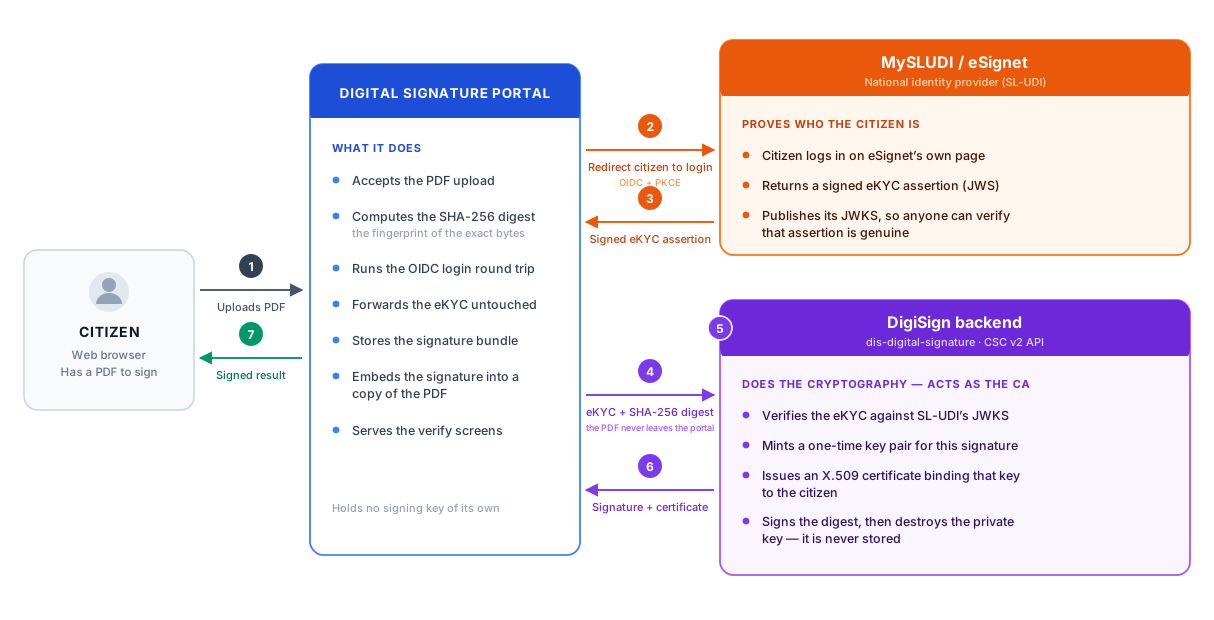
Three things in that picture are worth spelling out:
- The PDF never leaves the portal. Only its digest is sent onward, so the signing service never sees your document.
- The portal never vouches for your identity. It forwards the eKYC assertion untouched; Digi-Sign verifies it against SLUDI's own published JWKS, not against any key the portal supplies.
- The signing key exists for one request. It is minted, certified, used, and destroyed before the response comes back — there is no key store to compromise.