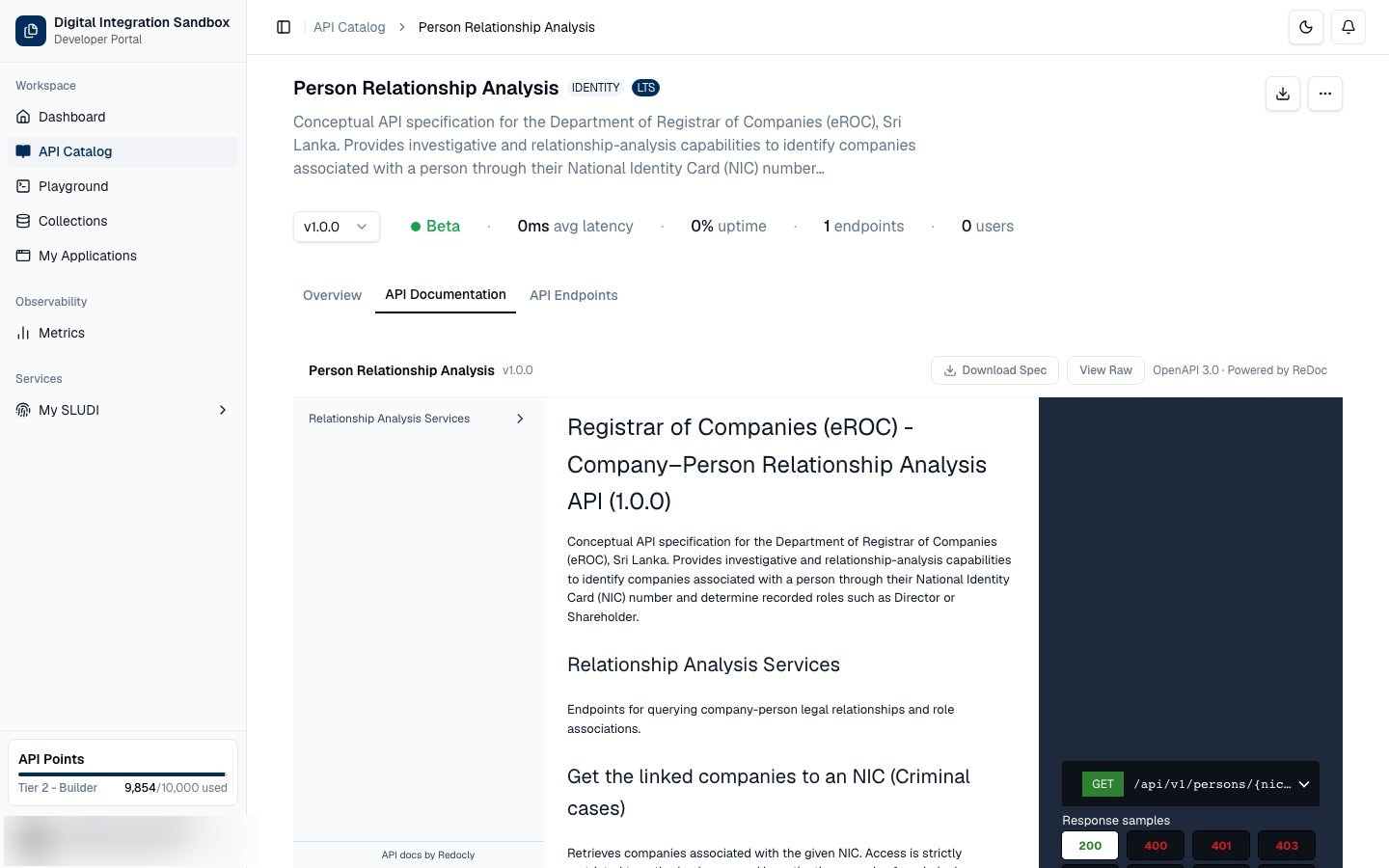
Part 1: Exploring the API Catalog
The API Catalog is your central hub for discovering and understanding the Digital Public Infrastructure (DPI) building blocks available in the ecosystem.
Step 1 — Access the Catalog
On the left-hand navigation sidebar, click on API Catalog.
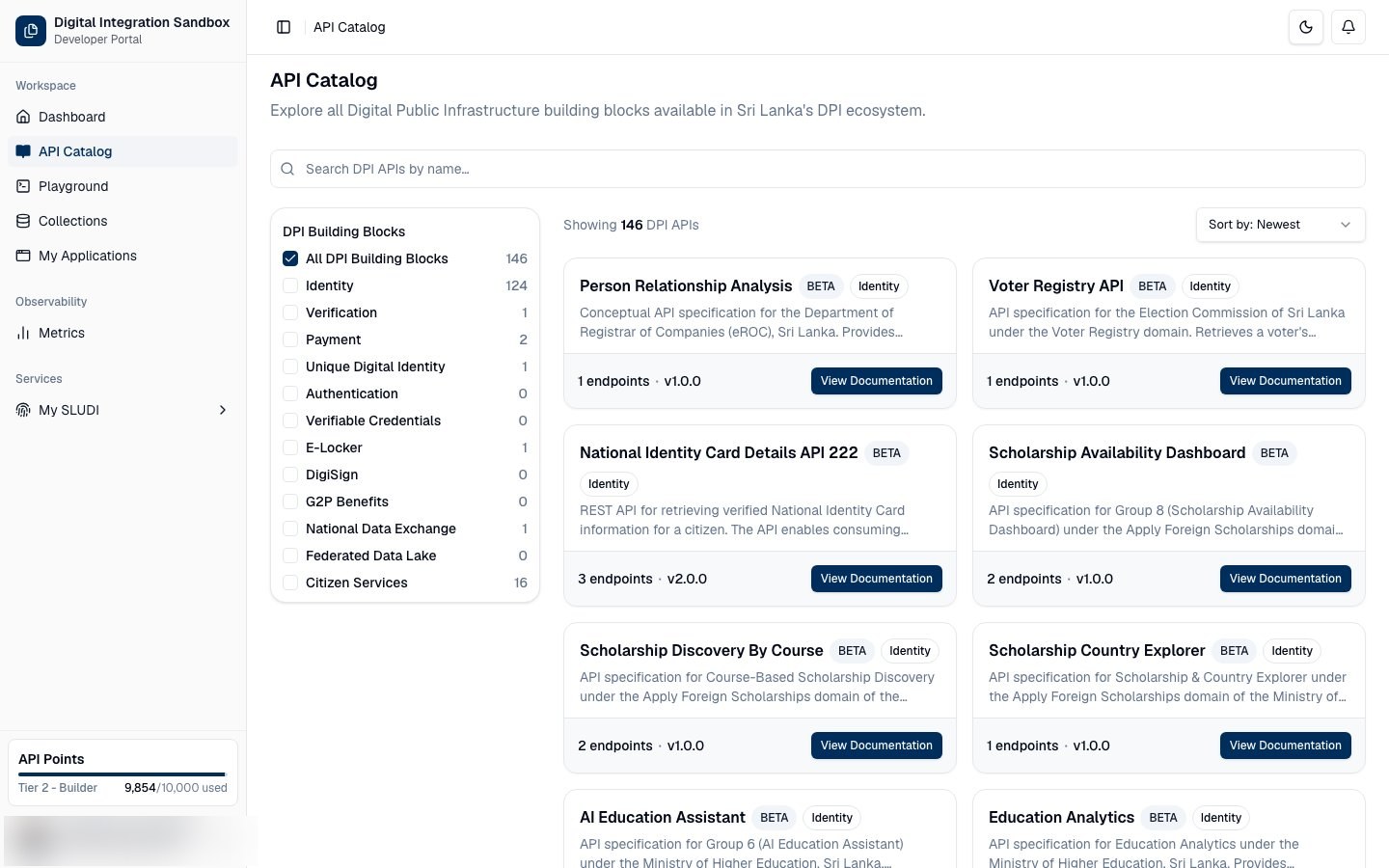
Step 2 — Search for APIs
Use the "Search DPI APIs by name..." search bar at the top of the page to quickly find a specific API.
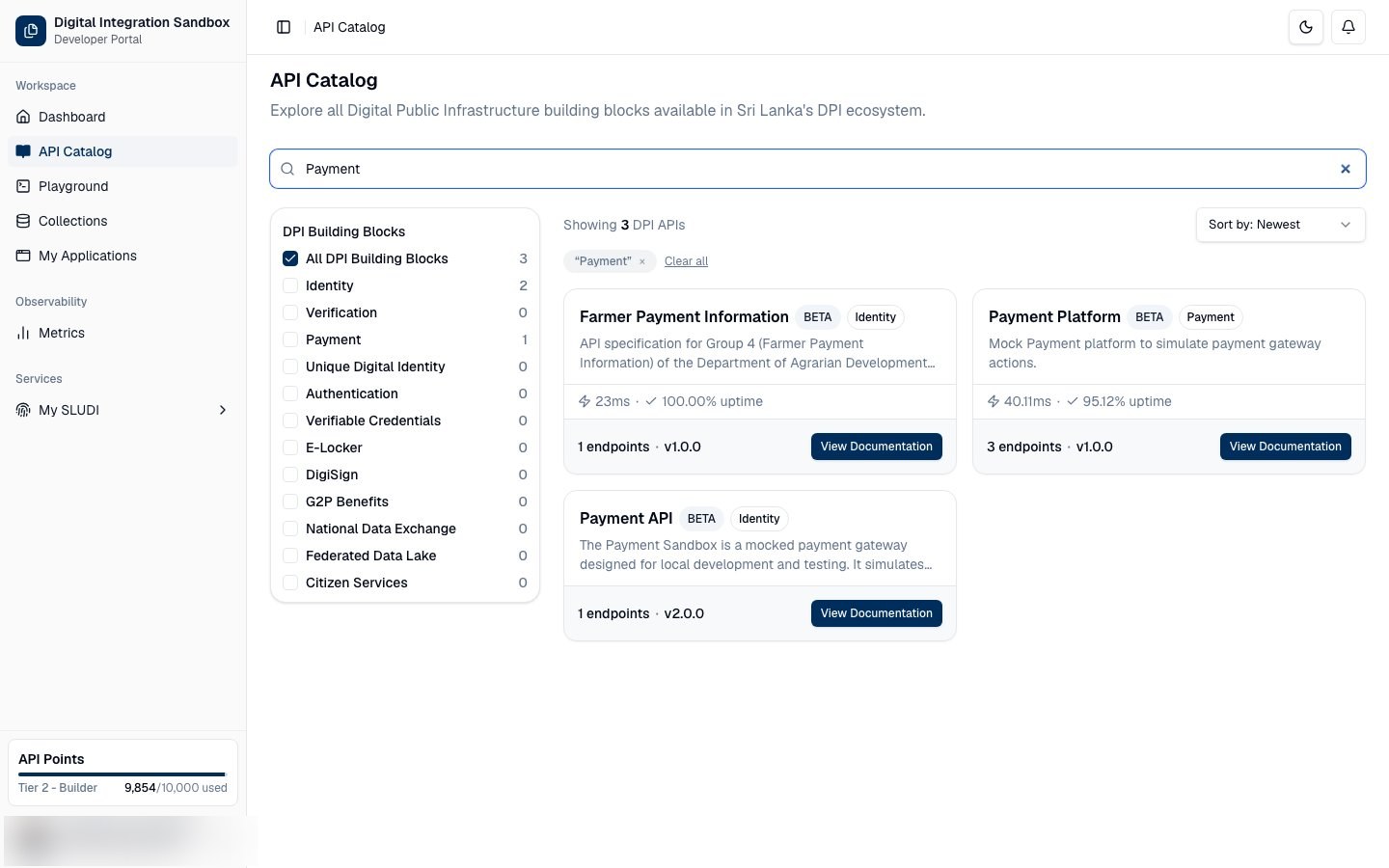
Step 3 — Sort Results
Click the Sort by dropdown menu in the upper right corner of the catalog list to organize the APIs. You can choose to sort by Newest, Name A-Z, or Name Z-A.
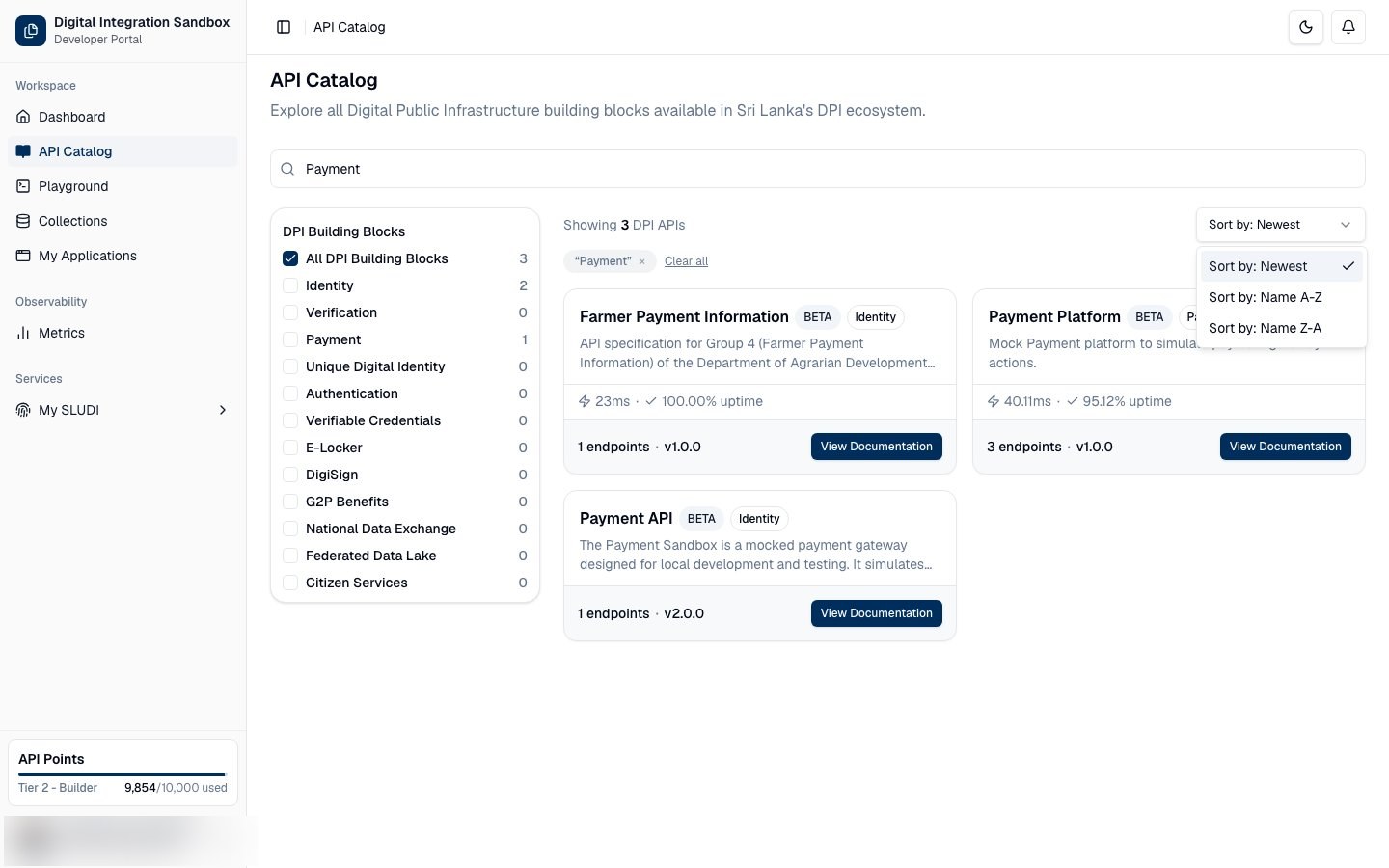
Step 4 — Filter by Category
Use the DPI Building Blocks menu on the left side of the catalog to filter APIs by specific categories.
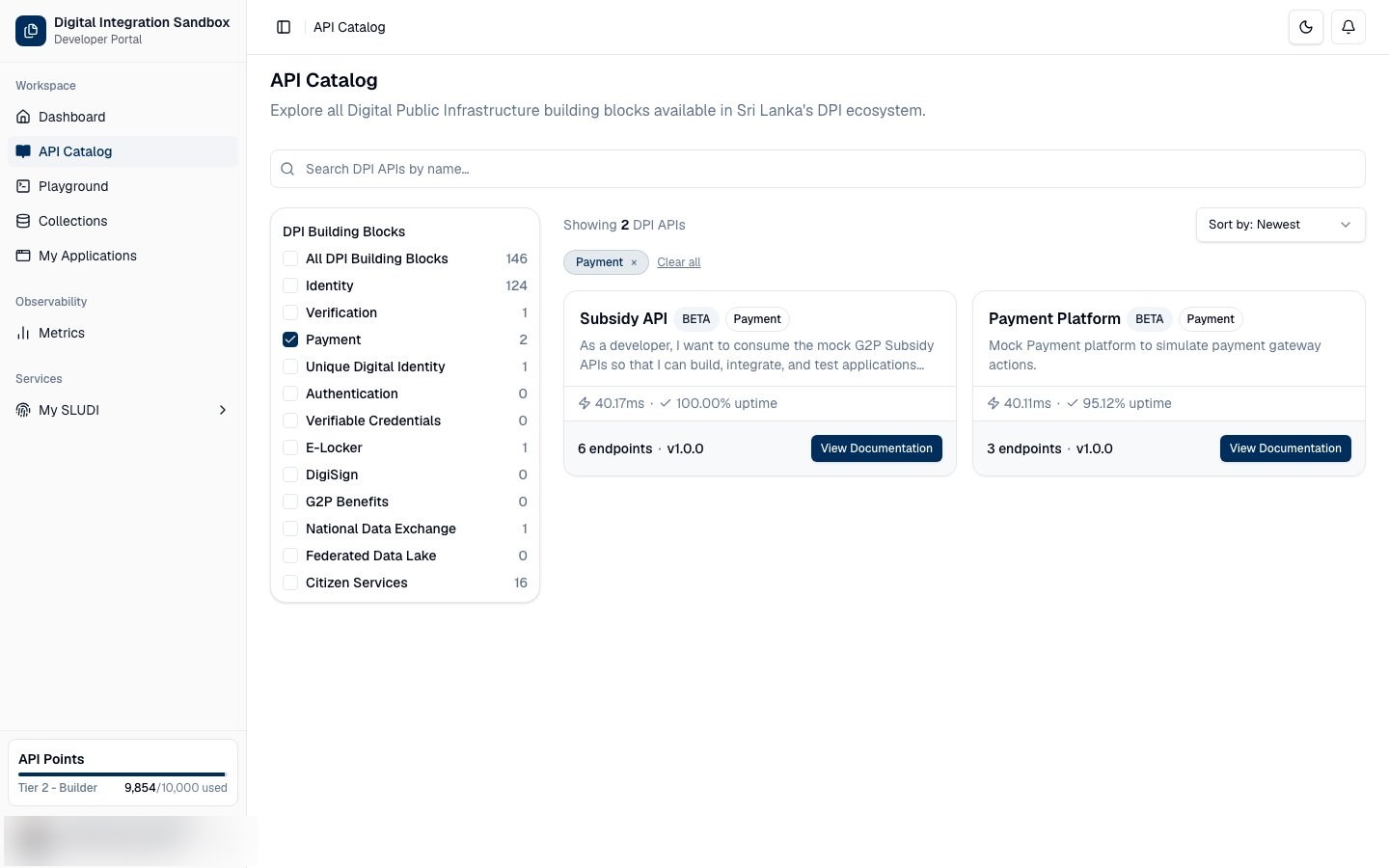
Step 5 — Clear Search and Filters
If you want to reset your view, click the Clear all button to quickly remove any active search terms or category filters.
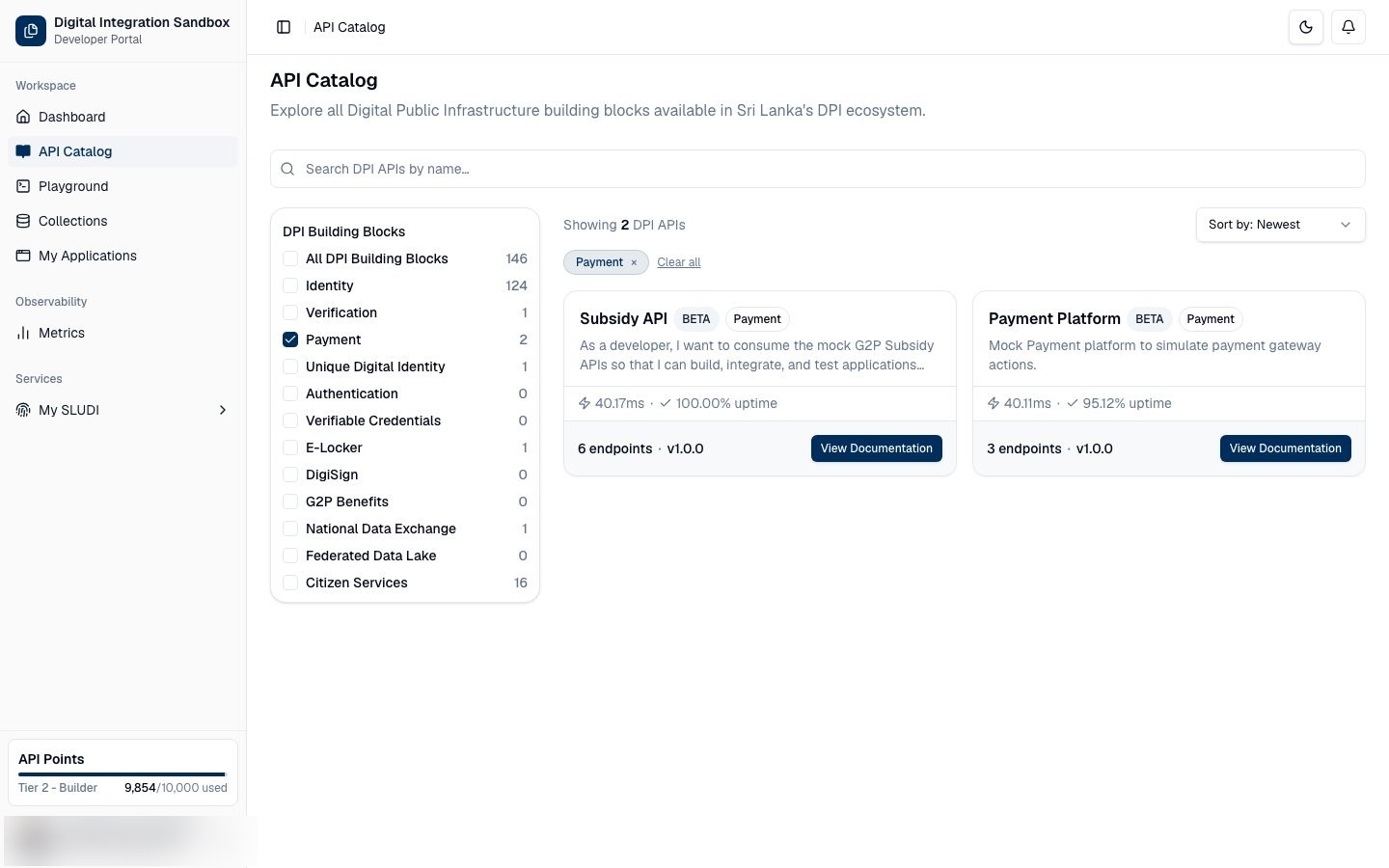
Step 6 — View Documentation
To learn more about how to integrate a specific API, locate its card in the list and click the blue View Documentation button.
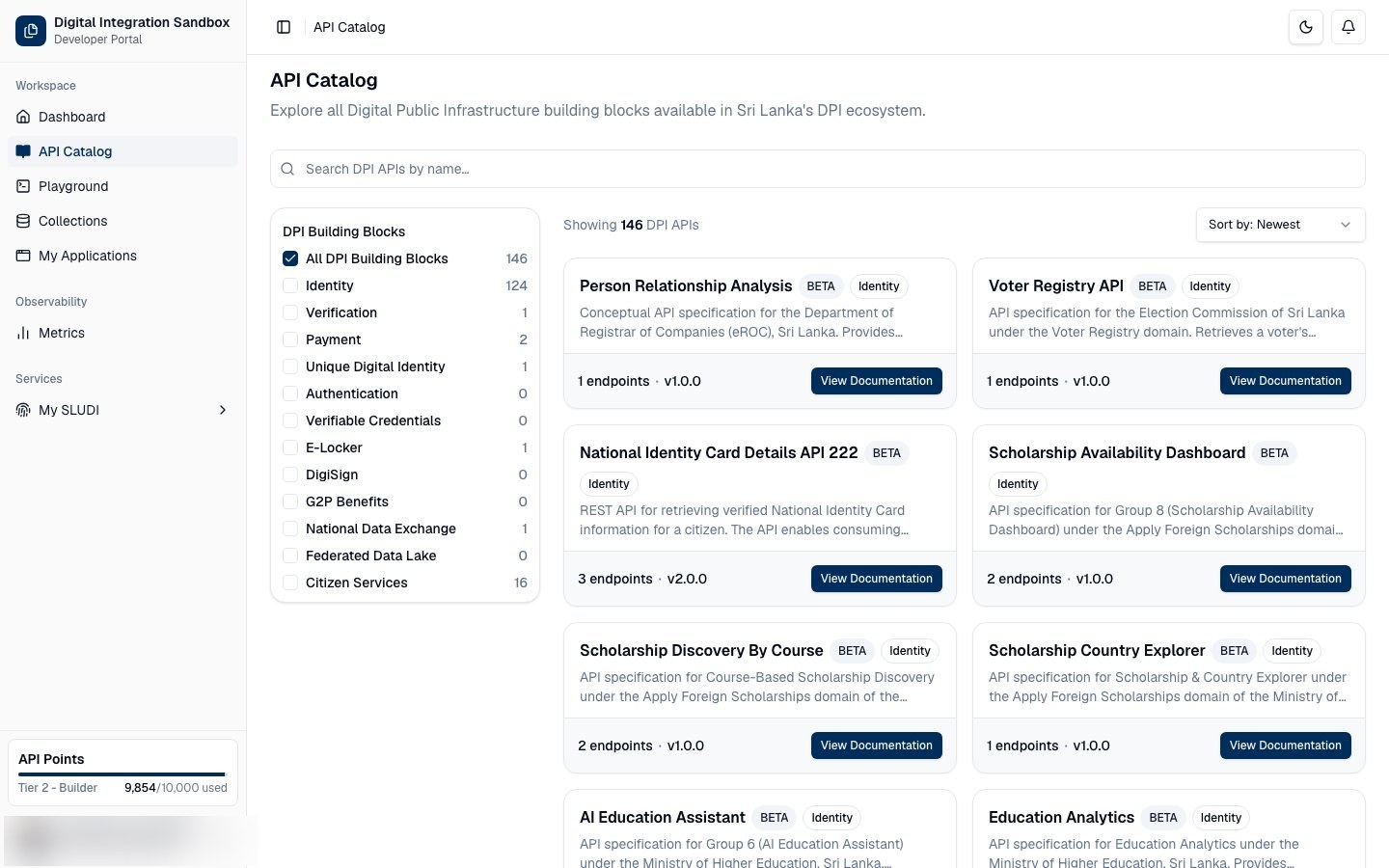
Step 7 — Overview of API Details
Review the full API details page, including available endpoints, versions, and integration notes.
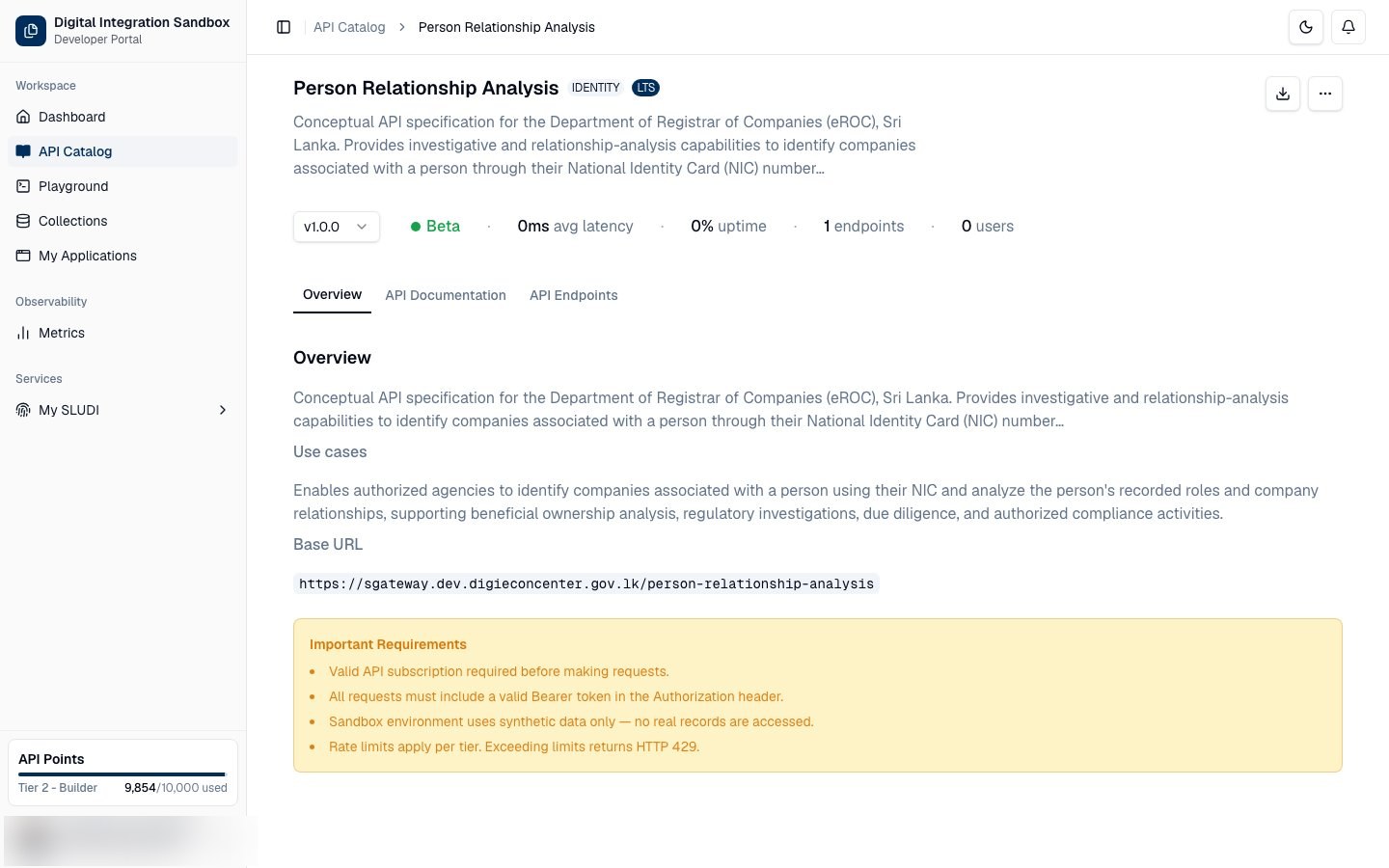
Step 8 — API Documentation
Open the API Documentation and API Endpoints tabs to review schemas, methods, and paths. To try live calls, use Playground (or Go to Playground from an application card after you register an app).